 +1-718-715-1551
 sales@onprintshop.com





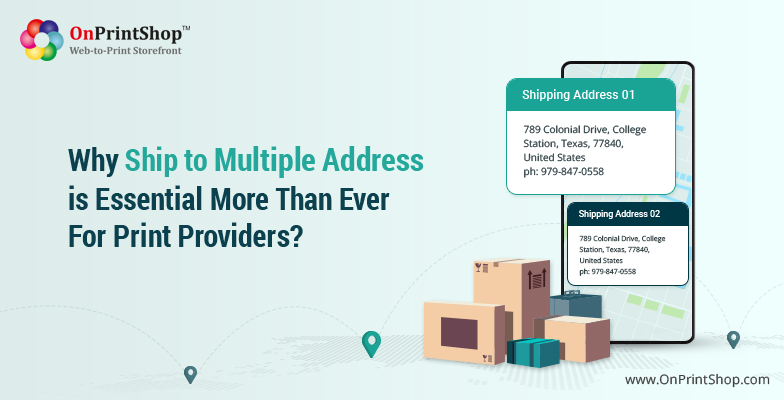
The major challenge in print ordering for multiple locations is ordering multiple times. Specially Reseller/Print Brokers would like to order large quantities of business cards, and brochures from Trade Printer and split that order, and ship to their end clients.
Second, corporate clients with franchisee networks and several locations order marketing materials in bulk and ask printers to provide specific quantities to each location.
In both cases, the process of placing an order is very tedious as Reseller & corporate both have to place orders one by one for each Shipment. Many times Printers have to manage these orders offline as they get orders from corporate to ship to 100s of locations.
OnPrintShop’s Ship to Multiple Address feature will give you the flexibility to fulfill orders in the way you want and will solve the major problem of repetitive order entries & saving huge time.
With this blog, we want to ensure that you have all the knowledge necessary to take advantage of this popular feature when the time comes for your business.
What is “Ship to Multiple Address”?
Ship to Multiple Address allows customers to ship their orders to multiple addresses in a single transaction. With this, resellers/corporates can easily manage and keep track of their deliveries, ensuring that all the orders reach their intended recipients on time.
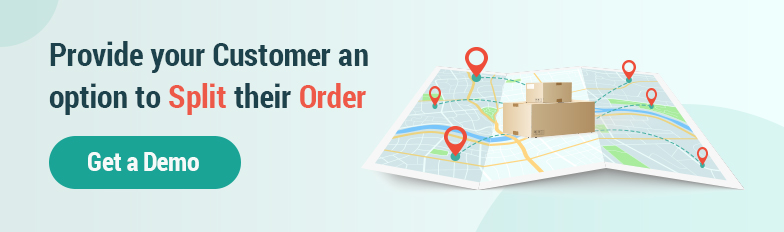
For instance, if a reseller received orders from multiple customers or a corporate is placing orders for multiple customers, then they can place the orders for all those customers in a single order by defining different shipments (shipping address and shipping methods) more effectively instead of placing different orders for every single customer.
Why offer Ship to Multiple Address?
Increases the Cart Value
The “ship to multiple address” feature allows the customers to send products in their order to different locations
If the orders are placed for multiple people at once, it may encourage the buyer to add additional items to that order. This is especially handy for businesses that specialize in gift or personalized items or for any establishments that appeal to customers who are shopping for individuals in a group.
Create Shipments as per Convenience
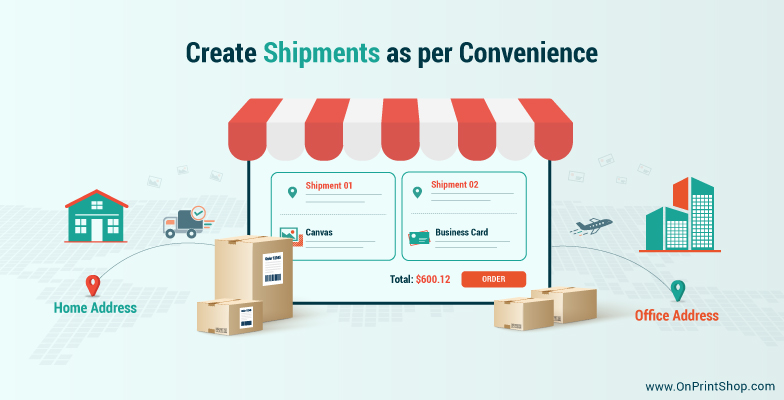
With the backend settings and configurations, you can set how the customers will be able to create shipments for their orders all by themselves. The customer can choose to get the Business Cards at their office location with the fastest delivery service whereas receiving the Canvas ordered at their home address with other shipping methods.
Similarly, a Restaurant ordering brochures and business cards can get the business cards delivered to Head Office and brochures at their multiple branches.
Faster Order Delivery
When the reseller/corporates purchases multiple products out of which one product goes out of stock, one takes less time to complete and the other one takes more time to be completed, they will know that they won’t be getting the entire order any time soon.
In such scenarios, the ship to multiple address feature will ensure that they will get some of the orders earlier than expected and at their desired locations.
How to make the most out of it?
The Ship to Multiple Address function, often known as Split shipping in the eCommerce sector, is something that most customers have grown to expect. Even though split shipping is quite flexible and may be customized to your business needs, the following recommendations can improve customer engagement and store performance.
Keep It Simple
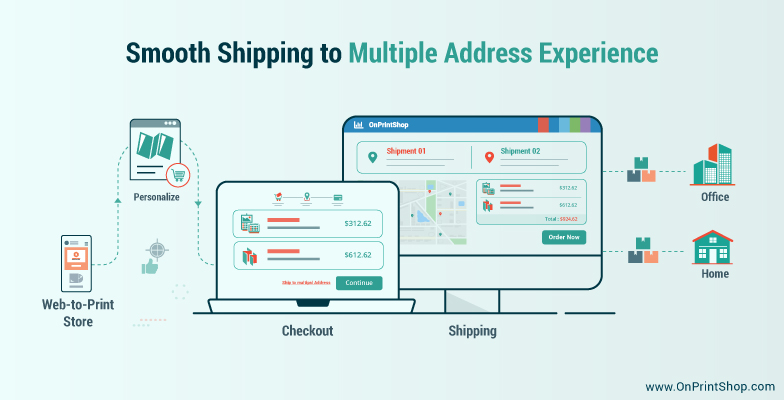
It’s important to emphasize the value of smooth shipping to multiple address experience, even though your entire website should be organized and simple to use. It’s one of the more recent additions to the checkout process, and we’ve discovered that the checkout screen is the location where it can be implemented the simplest.
Promote on Your Website
As mentioned above, this is one of the recent additions to the checkout process, so you need to make sure that you are showing information about offering this feature somewhere in your front store before your customers start their purchase journey.
Offering Checkout Option Based on Business Model
In OnPrintShop, the admin can offer multiple address features in two ways on the checkout page depending on the business.
For a B2C business model, the admin can display both the options (Ship to Multiple Address and Standard Checkout method) and for a reseller or B2B model, the admin can push the Ship to Multiple Address on the Continue button on the checkout screen.
Allow to Split the Quantities
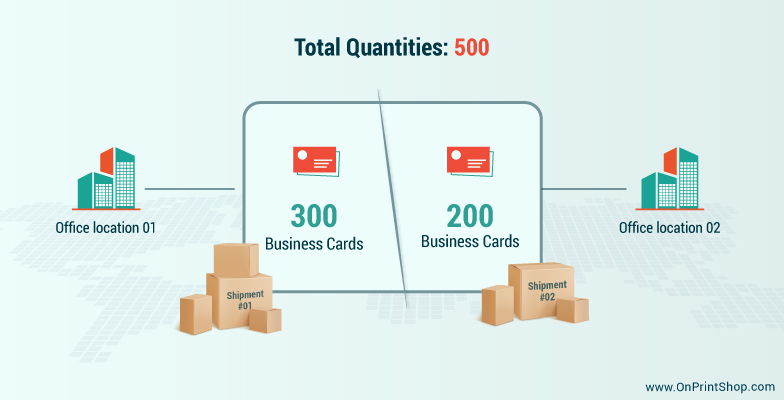
The Split Quantity functionality gives your customers the option to modify the quantity of each item they’re shipping to each location. In other words, they might be ordering 500 quantities of Business Cards, and they can create a shipment of 300 cards to one of their office locations and the remaining 200 quantities can be shipped to another one.
How to Use OnPrintShop’s Ship to Multiple Address Feature?
To allow your customers to utilize the new feature of Ship to Multiple Address, you need to enable this feature from the admin panel along with specifying how this feature will appear on the checkout page, how the group titles will be displayed, and if you want to allow splitting the product quantities. The customers can create as many new shipments as they want.
You can check the video on How to configure Ship to Multiple Address and offer this option to your customers.
Key Takeaways
Giving your consumers the option to ship things to various destinations from a single order can enhance their shopping experience at your site. Your customers can specify a shipping address and a different shipping method for each item in their shopping carts. They may confidently use our simple method at every stage to bundle products heading to a single address, choose quickly from Saved Addresses, or enter a new address.